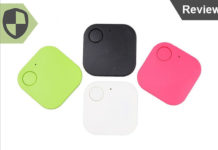
To replace an item tracker battery, you open the back of the tracker, unplug the old battery, connect a new one of the type the maker recommends, close the shell and confirm the status light blinks. The step-by-step help articles for screw-together GPS asset trackers follow that same sequence. Keychain tags such as AirTag and SmartTag may be built differently, so check your model’s support page before you open one.
How do I replace the battery in a screw-together item tracker?
A help article for the Asset 432 tracker lists these tools: Phillips screwdrivers (#2 and either #0 or #00), a flat prying tool, and a pointed tool such as a small sharp screwdriver. Have them ready before you start.
- Press down and out on the small divots beside each of the four screw caps on the back, then unscrew the four screws.
- Slide the flat prying tool into the tab at the bottom-right corner of the back shell and separate the two shells.
- Move the power switch to OFF, remove the four small screws holding the circuit board, and lift the board and battery out of the lower shell.
- Unplug the old battery and plug in the new one. Make sure the battery wires are not pinched when you reinsert the board and its four screws.
- Switch the power back to ON, press and hold the small button beside the switch until the blue LED lights up, then release.
- Snap the shells together without toggling the switch off, then reinstall the screws and screw caps.
Then check the status light. A slow-blinking green LED means the device is functioning. If no lights show, reopen the tracker and confirm the power switch is ON and the battery is connected.
How do I reset the battery reading after the swap?
The Asset 432 help article says to log into your tracking platform and send the command “Reset Battery Indicator to 100%.” Allow up to 24 hours for the change to show, and keep the tracker powered on in an area with strong signal. A second help article for the Asset 422 tracker describes the same reset with the command “Reset Battery Percentage to 100%.”
How is the AssetTrack Mini battery swap different?
The AssetTrack Mini is a compact, battery-powered tracker, and its help article uses a different layout. Compare the two:
| Step | Asset 432 | AssetTrack Mini |
|---|---|---|
| Tools | Phillips #2, #0 or #00, flat prying tool, pointed tool | Phillips size 0 or 00, flathead or flat-end prying tool |
| Opening | Four screw caps and four screws, then pry the shells apart | Four screws on the back, then pry off the top cover |
| Circuit board | Four small screws, then lift board and battery together | Two screws on the interior plate, then three board screws; disconnect the battery cable |
| Old battery | Unplug the battery connector | Pry the battery from the bottom of the casing; adhesive may hold it |
| Power | Switch OFF before removal, ON after reassembly | Toggle OFF before, ON after reassembly |
The AssetTrack Mini article warns you not to puncture or bend the battery, because adhesive may be holding it in place.
What battery do I need, and can I reuse the old one?
The AssetTrack Mini article says to use the correct replacement battery recommended by the manufacturer. It also says not to charge or reuse the old battery, and to dispose of used batteries according to your local electronic waste disposal guidelines.
A supplier blog on wireless tracking devices advises checking the device’s user manual or the manufacturer’s website for the right battery type. Start there with your exact model number before you buy.
How long do battery-powered trackers last?
The supplier blog explains that over time batteries lose their ability to hold a charge, so a tracker stops lasting as long on one charge. That is the sign to swap the battery. Check the spec sheet for your model for its rated battery life, and use your tracking platform’s battery reading to see how the current battery is doing.
Will the Apple Store or Samsung replace my tracker battery?
Check the maker’s support page for your model, or call the store, to confirm whether they replace the battery and at what cost. Before you visit a store, ask two things: whether they replace the battery in your model, and what it costs.
How do I open, replace and power a SmartTag or AirTag?
The steps above are for screw-together GPS trackers. A keychain tag may open differently. Check the maker’s support page for your exact model for the battery type, rated battery life and whether it needs charging. If you cannot see screws or a seam, do not force the case. Read the maker’s instructions first.
Who should check the ecosystem and consent first?
Work through these questions before you open, replace or keep using a tracker:
- Is the tracker for your own belongings, your pet or your vehicle? If yes, continue.
- Confirm which app and location network your tracker uses by checking the maker’s documentation for your model before you replace the battery, and review who the app lets see the tracker’s location.
- Would every adult it could follow know about it and agree to it? If not, do not place or keep it on anyone. Never use a tracker to covertly track people.
Is a Prime Day or Black Friday deal on a replacement battery or tracker worth it?
Holiday prices change quickly. Prices and deal dates change, so check them directly with the seller. Before you pay, check these:
| Where to look | Why it matters | |
|---|---|---|
| Battery or tracker compatibility | The model number on the device and the maker’s battery listing | A battery meant for a different model may not fit. |
| Total cost | The order page, including any subscription or platform fee | The sticker price may not be the full cost of ownership. |
| Accessories | The bundle contents on the order page | Screwdrivers, spare batteries or cases may be extra. |
| Returns | The seller’s returns page | Confirm the return window and who pays return shipping. |
| Warranty | The label or the maker’s warranty page | Confirm what it covers and for how long. |
If you are still deciding which tracker to buy, read about the The O small smart tracker or the XY3 Find It tracker.
Before you order
- Your exact tracker model number, and the battery type the maker lists for it.
- Whether the tracker needs a subscription, and what that costs each month.
- The return window and warranty length on the seller’s page.
InfinitePowerSolutions.com has not tested, bought or used any product named on this page. Makers’ statements are reported as the maker’s.
By InfinitePowerSolutions.com Technology Desk